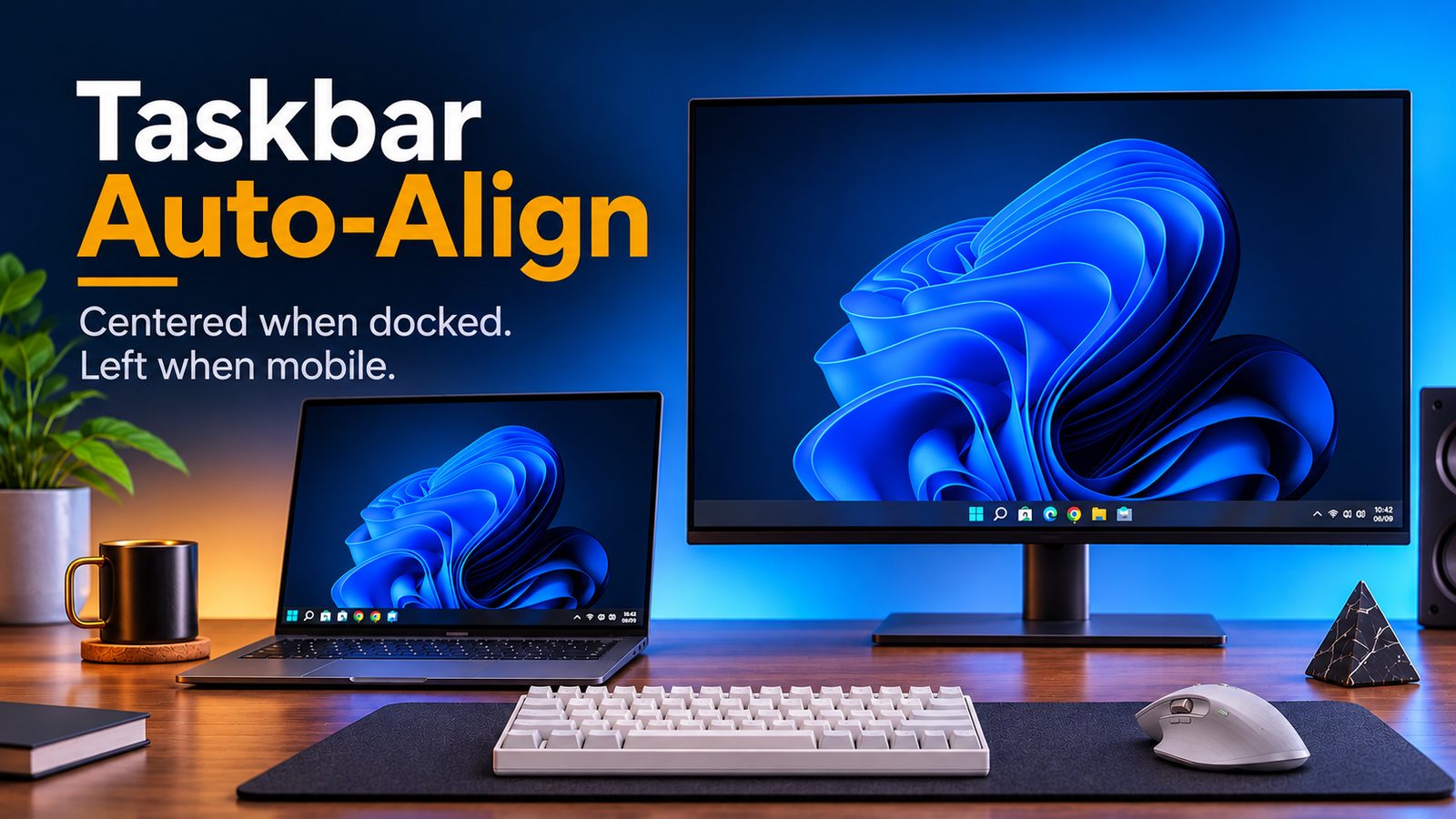
The Annoyance
My laptop spends half its life docked to a Dell monitor and the other half on its own. On the big screen, a centered taskbar feels right: the icons sit in the middle of where I’m looking. On the laptop’s small screen, I prefer them on the left, where they’re quicker to reach and get the full width of the taskbar before running into the system tray.
Windows 11 gives you one setting for this, and it doesn’t care which screen you’re on. So every dock and undock meant opening Settings and flipping it by hand. Small, but constant, and the kind of thing worth fixing properly once.
The First Version
My first attempt worked, but it was built for my desk and nothing else. A VBScript launched a PowerShell loop that woke up every two seconds, looked for a monitor with “Dell” in its name, and set the taskbar alignment to match.
It did the job. It also had problems that would show up the moment someone else tried it:
- It only knew about Dell. Plug in an LG or a Samsung and it would never center.
- It polled constantly. Querying device information every two seconds isn’t free, and on a laptop that’s battery you’re spending for nothing.
- It fought me. If I changed the alignment by hand, the loop put it back within two seconds.
- It relied on VBScript, which Microsoft is phasing out of Windows 11.
The Rewrite
Detect the connection, not the brand. Windows already knows how each monitor is connected. The WmiMonitorConnectionParams class reports, for every display, whether it’s active and what kind of link it uses. A built-in panel reports as internal, and an external monitor reports as DisplayPort, HDMI and so on. So the rule became simple: if any active monitor is not internal, center the taskbar. It works with any brand of monitor.
On my machine the check looks like this:
InstanceName                       Active VideoOutputTechnology
------------                       ------ ---------------------
DISPLAY\SHP1572\...                  True            2147483648
DISPLAY\DEL4377\...                  True                    10
The first line is the laptop’s own panel (2147483648 means internal). The second is the Dell over USB-C (10 is DisplayPort).
Listen instead of polling. Windows raises an event whenever the display configuration changes. The script subscribes to it and does nothing until a monitor is plugged in, unplugged, or the lid closes. It then waits a moment for the connection to settle, checks once, and goes back to waiting. A light re-check every 30 seconds covers the rare missed event.
Act on changes, not continuously. The script only touches the alignment when the display setup actually changes. If I set it by hand, it stays that way until the next dock or undock.
Start invisibly, without VBScript. An installer registers a per-user scheduled task that runs at logon through conhost.exe --headless, so there is no window and no flash. One command installs it and one removes it.
Testing
I’m on an ARM64 Surface, so before trusting it I wanted to make sure nothing in the script depended on the processor. Everything it uses (PowerShell, the display APIs, WMI, Task Scheduler) is part of Windows itself and behaves the same on ARM and Intel. The one real unknown was whether the Qualcomm display driver would report the built-in screen as internal. The output above settled that.
Then the practical tests:
| Scenario | Result |
|---|---|
| Unplug the Dell | Left ✅ |
| Plug it back in | Center ✅ |
| Close the lid while docked | Stays centered ✅ |
| Change alignment by hand | Stays put ✅ |
| Reboot while docked | Center ✅ |
Get It
The script, installer and documentation are on GitHub under the MIT license:
👉 github.com/TiPuco/taskbar-auto-align
The README covers installation, how it works, and what to check if your display driver reports something unusual. Issues and improvements are welcome.
It’s a small tool, but it removes one of those tiny daily frictions you stop noticing until it’s gone.